Follow these steps in order. Screens may look slightly different depending on your account settings.
View the overview
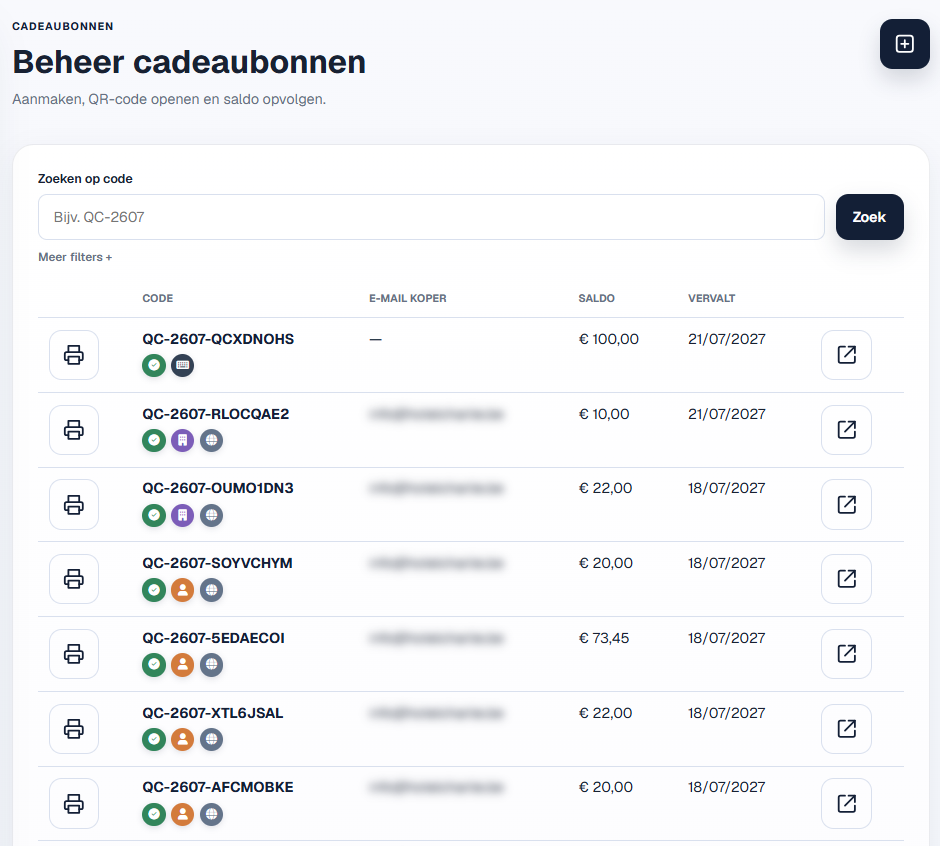
Go to Gift cards to see the complete list. For each gift card, icons show the status, purchase type (business or private) and sales channel (manual or online). Print a gift card using the printer icon. Open its details by clicking the gift card code or the button on the right.
Use filters
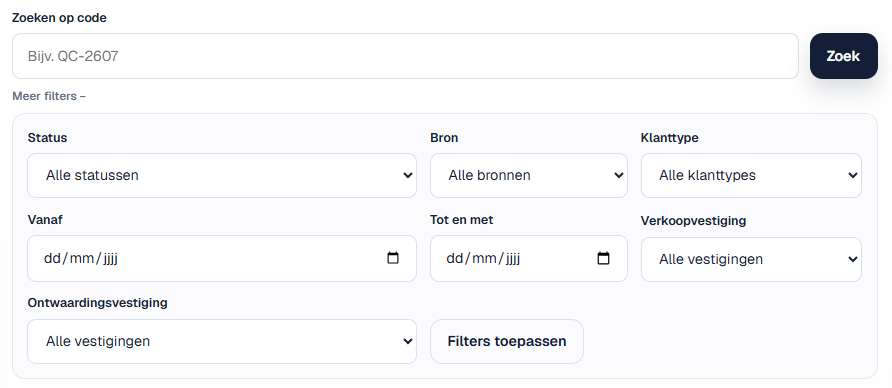
Use filters to quickly find the right gift cards. For a more focused overview, combine filters such as status, period or sales channel.
View gift card details
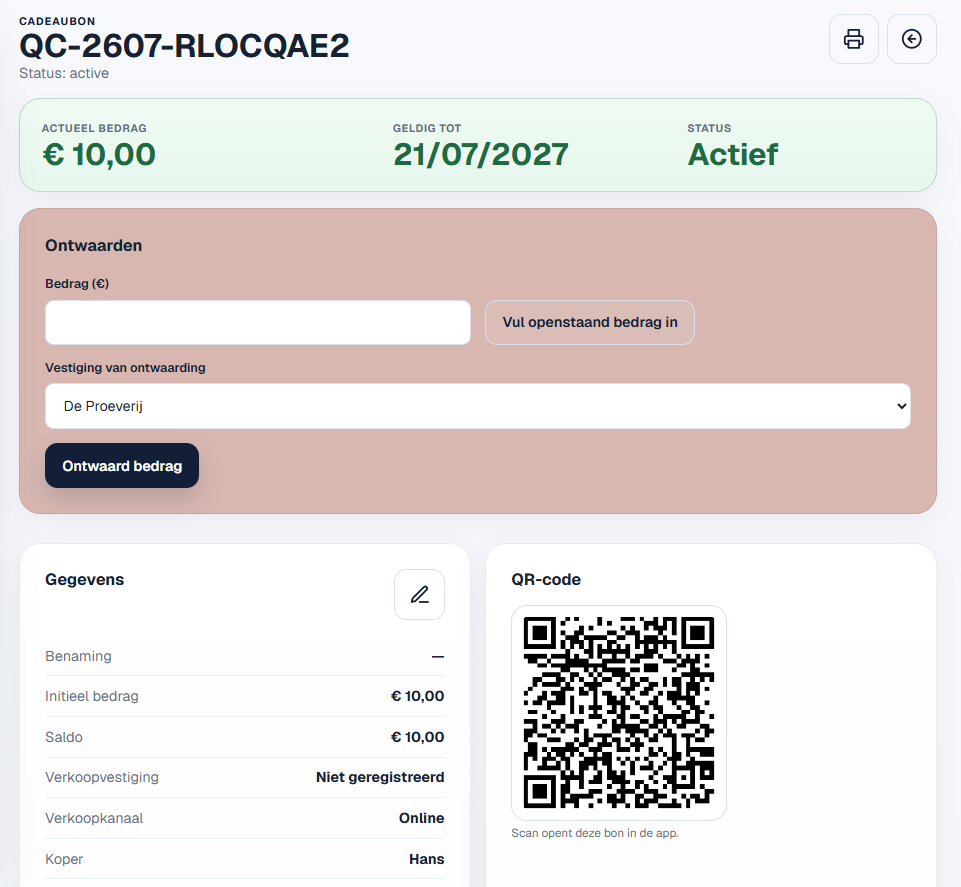
Open a gift card to view its full details, value, validity period, delivery and transactions.
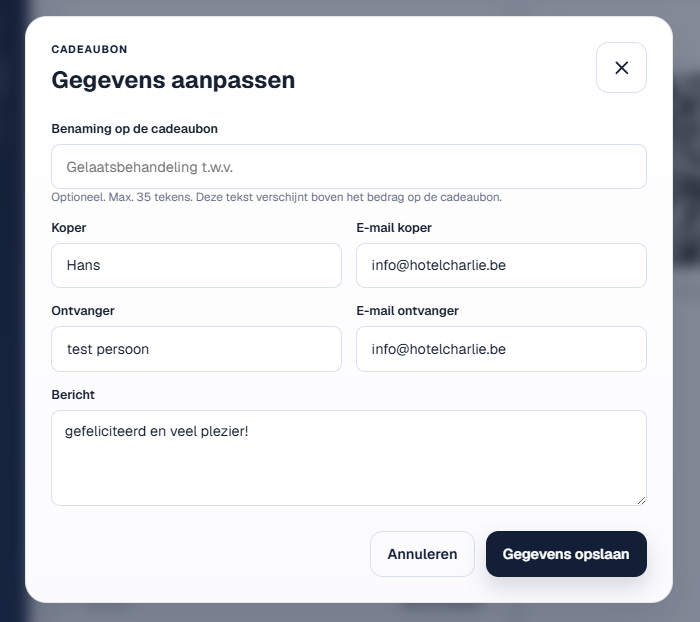
Edit details based on your access rights
Click the pencil icon to edit details. The information you can change depends on the permissions assigned to your user account.
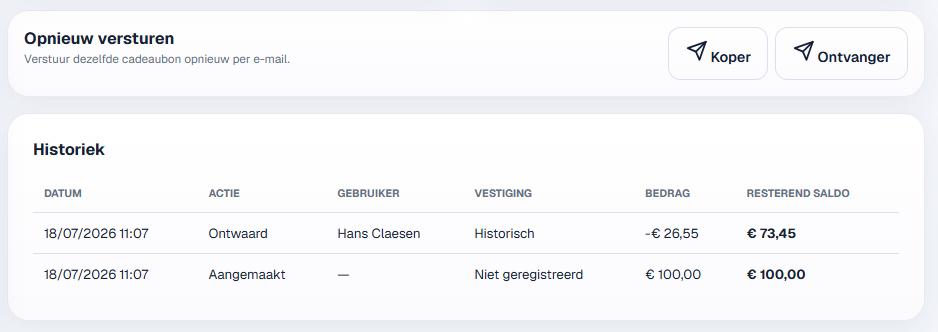
Resend and view the history
At the bottom of the details page, you can resend a gift card by email if the buyer’s and/or recipient’s details are available. You can also view the gift card’s history there.